Quick and Easy (and not the best) way to use HTTPS with qBittorrent and Firefox
3 min read
Wanna use HTTPS with your qBittorrent WebUI, but don't know how? First off, you probably shouldn't expose the qBittorrent WebUI to the internet. Use Tailscale to tunnel into your home network, and access it that way. Some will say you don't need HTTPS then, but that is a discussion for another day. Anyway, if you want easy HTTPS with qBittorrent, read on.
In a Linux terminal, run the following command to create cert.crt and key.key - a key and certificate pair.
openssl req -x509 -newkey rsa:4096 -nodes -out cert.crt -keyout key.key -days 365
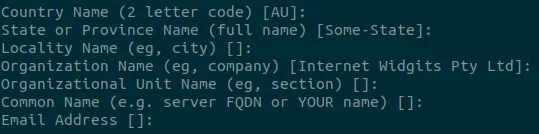
You can just click through all of the fields below - it won't affect the operation of your certificate.
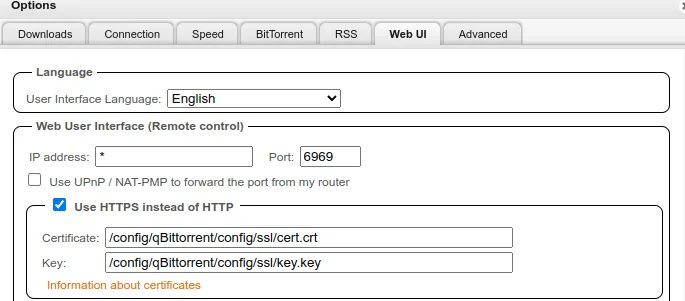
Now, we need to add these to the WebUI. In qBittorrent, go into tools > options > Web UI. Check use HTTPS instead of HTTP. Then, enter the paths to the certificate and the key that you just created.
Now, when you visit the URL of the qBittorrent web interface, you'll have HTTPS, but you'll get a warning.
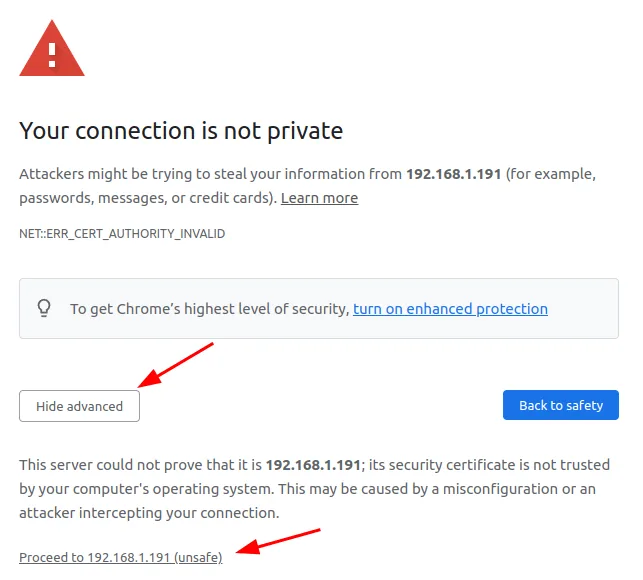
Click advanced and then proceed to ip-address (unsafe) and you'll be able to log in to your web interface. Don't worry, everything is safe. The browser is just warning you that this isn't an official cert from a trusted authority - everything is still encrypted.
You can optionally add an exception in your browser that will bypass this warning message. You probably shouldn't do this, but oh well. If the bad guy has gotten this far, your qBittorrent app is probably the least of your worries. After all, they've probably already cracked your WebUI password, and can run arbitrary python code, as I talked about here.
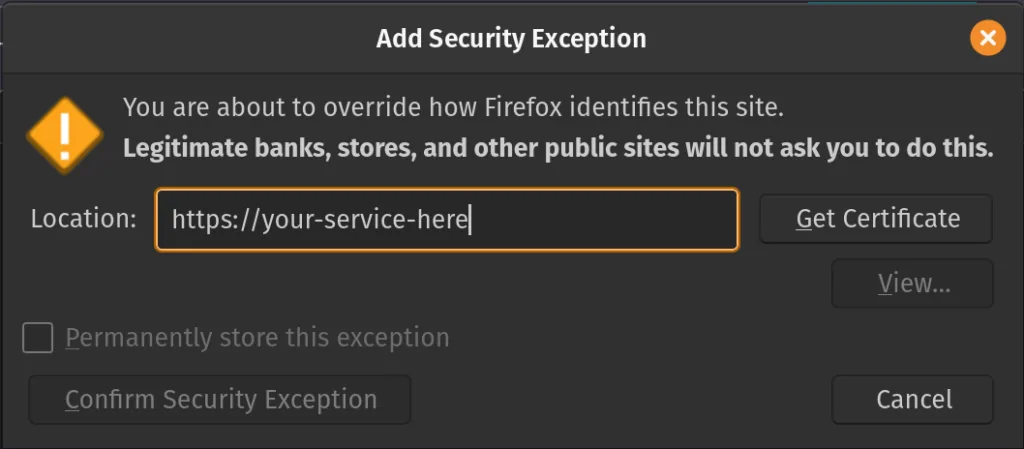
Anyway, in Firefox, go to settings > privacy & security. Then scroll down to find certificates where you will see the option to view certificates, so click on that. The certificate manager, as seen below, should pop up. Click on the servers tab, and then click add exception.
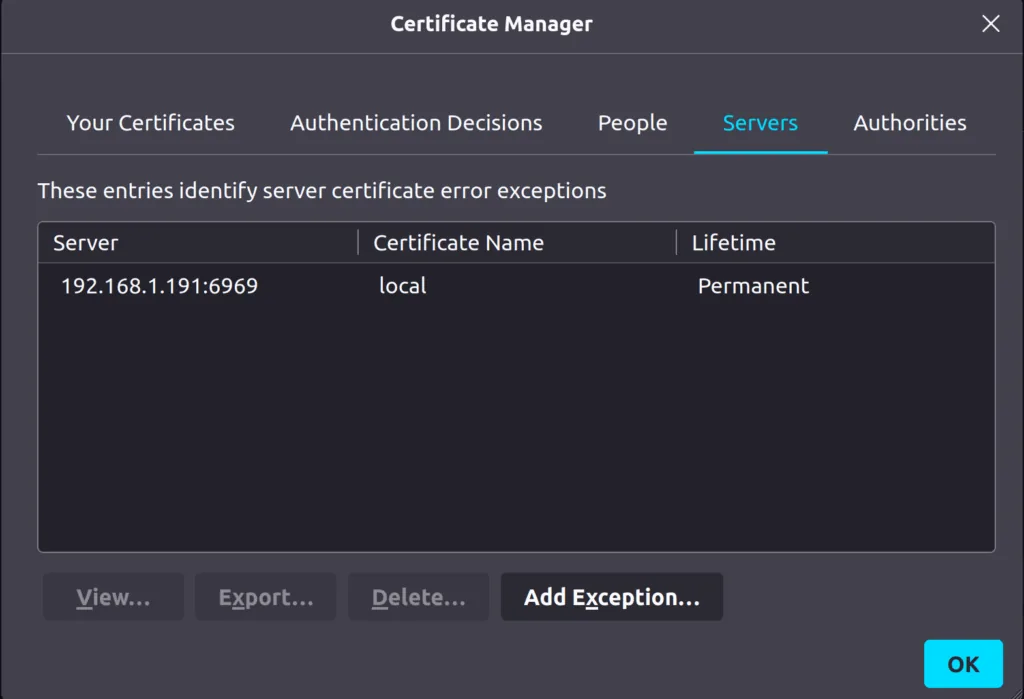
Enter the URL of your qBittorrent WebUI. As you can see, in the picture above, mine is 192.168.1.191:6969. Use your URL in the location box on the add security exception screen. Then click get certification. It'll query the site for the cert and then the checkbox to permanently store this exception will become clickable. So click there and then click on confirm security exception.
That's all you have to do in Firefox. You can use a similar method for other browsers. Now you have HTTPS with your qBitorrent WebUI. Again, this isn't the best way to do this, but it'll work. If you want HTTPS with an official certificate, try out Let's Encrypt with a reverse proxy and a custom domain name. So, you'd purchase a domain name, have that domain resolve to your home IP, then forward the port from your router to your internally hosted qBitorrent, or setup a reverse proxy to do the work for you. This will expose your setup publicly, so consider that.
And if you're also looking to watch IPTV on Plex to supplement torrenting, check out my guide where we use privateiptvaccess.com to help plumb up IPTV.